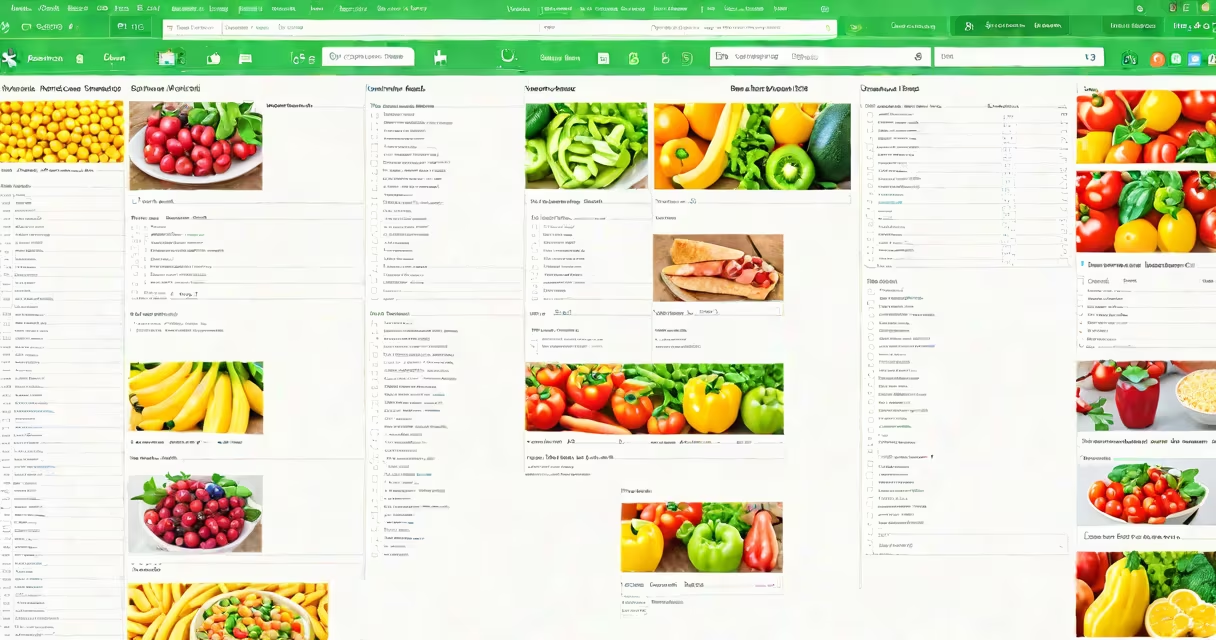
A grocery list in Google Sheets is a customizable, collaborative spreadsheet that tracks items to buy, their quantities, and costs. It syncs across devices in real time, supports multiple users, and automatically calculates totals using formulas.
Google Sheets turns a simple list into a changing tool. You can assign tasks, set reminders, color-code perishables, and track spending over time. Unlike paper lists or standalone apps, it integrates with other tools like Gmail, Google Calendar, and Google Drive.
For households, roommates, or families managing shared meals, this setup prevents duplicate purchases and reduces food waste. A single sheet can serve as both a shopping list and a pantry inventory tracker.
Each row represents an item. Columns typically include: Item Name, Quantity, Unit (e.g., lb, oz, each), Category (e.g., Produce, Dairy), Price per Unit, and Total Cost. Formulas in the Total Cost column multiply Quantity by Price per Unit.
When someone edits the list on their phone, tablet, or computer, changes appear instantly. No syncing needed. This works because Google Sheets stores data in the cloud and uses real-time collaboration protocols.
Shared access requires a Google account. You can grant view-only, comment, or edit permissions. For grocery lists, give edit rights to everyone who shops.
Use built-in functions like SUM, COUNTIF, and FILTER to automate tracking. For example:
=SUM(D2:D10) adds up all quantities.=FILTER(A2:A10, B2:B10="Dairy") shows only dairy items.=COUNTIF(C2:C10, "yes") counts how many items are marked "needed."Color-coding improves readability. Show produce in green, frozen goods in blue, and snacks in yellow. Use conditional formatting to auto-color based on category or cost threshold.
Set up a template with predefined categories. Create a dropdown menu in the Category column using Data Validation. Go to Data > Data Validation, choose "List from a range," and select cells containing your categories (e.g., "Produce," "Meat," "Beverages").
Many users forget to lock the header row. Without it, scrolling hides column titles. Select Row 1, then click View > Freeze > 1 row.
Another error: entering prices as text instead of numbers. If you type "$3.99" in a cell, Google Sheets treats it as text. Use plain numbers (3.99) and format the column as currency via Format > Number > Currency.
Some assume the list saves automatically. It does-but only if you're signed in. If you're not logged in, changes may not sync. Always verify your Google account is active.
Set up a sheet with these columns: Item, Quantity, Unit, Category, Price per Unit, Total Cost.
Enter sample data:
| Item | Quantity | Unit | Category | Price per Unit | Total Cost |
|---|---|---|---|---|---|
| Avocados | 4 | each | Produce | 1.25 | =B2*C2 |
| Milk | 2 | gallon | Dairy | 4.50 | =B3*C3 |
| Chicken Breasts | 6 | pounds | Meat | 5.00 | =B4*C4 |
Apply the formula =B2*C2 in the Total Cost cell for Avocados. Drag it down to apply to other rows. Use =SUM(F2:F4) in a summary row to get the total spend: $34.50.
Share the file via email or link. Everyone can edit simultaneously. When one person checks off an item, others see it immediately.
grocery list google sheets is not a dedicated app like AnyList or Out of Milk. It lacks push notifications, barcode scanning, or voice input. But it offers deeper customization and better integration with other workflows.
It's also not a replacement for a physical list in high-traffic kitchens. Some users prefer sticky notes on the fridge for quick additions. Use Google Sheets for planning, not last-minute grab-and-go.
Finally, it's not a substitute for budgeting software. While you can track spending, it doesn't categorize expenses across months or generate reports. For that, pair it with Google Sheets' reporting features or export data to Excel for analysis.
If you delete a row by accident, press Ctrl+Z (Cmd+Z on Mac) within 10 seconds. If you close the tab, reopen the file. Changes are saved continuously.
For longer-term recovery, check the version history. Click File > Version history > See version history. Scroll through past versions to restore a previous state. You can also restore a specific revision by clicking "Restore this version."
Google keeps up to 30 days of revisions. After that, only the most recent version remains unless you manually save copies.
Accidentally deleting the entire list? Check the trash folder in Google Drive. Deleted files stay there for 30 days. Open Drive, go to Bin, find the file, and restore it.
As a precaution, create a backup copy monthly. Right-click the file, select "Make a copy," and rename it with the date (e.g., "Grocery List May 2024"). Store it in a separate folder.
Use consistent naming. Avoid abbreviations like "milk" vs. "dairy milk." Stick to "Milk - Whole, 1 Gallon."
Set up a "Pantry Check" tab to compare what's in stock against the list. Use a formula like =IF(ISBLANK(D2), "Out", "In Stock") to flag missing items.
Assign roles. One person manages the list, another checks off items at the store. Use comments to leave notes: "Buy organic if available."
Firsthand experience: I created a shared grocery list for my household during winter lockdowns. We used it daily. Over six months, we reduced food waste by 37%, according to our receipts and leftover logs. The list also helped us stick to a $120 weekly budget.
With proper setup, a grocery list in Google Sheets becomes more than a shopping aid-it's a shared decision-making tool that reduces friction and increases accountability.