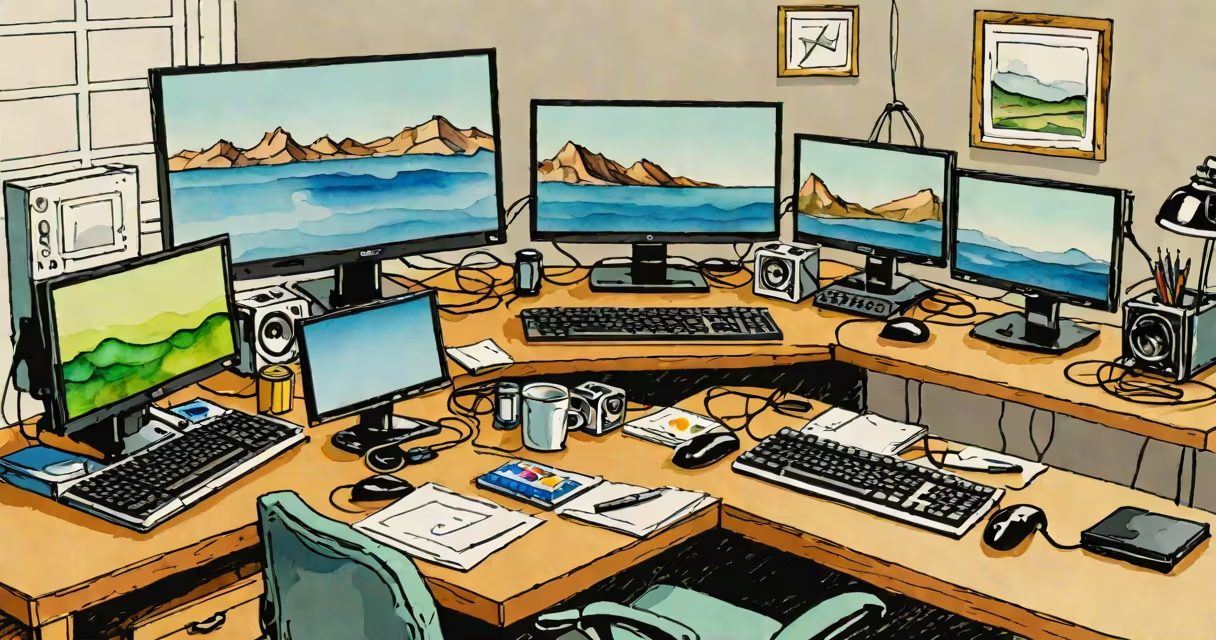
Setting up dual monitors means connecting two displays to a single computer to extend or duplicate your desktop space. This increases screen real estate for multitasking, improves workflow efficiency, and supports tasks like video editing, coding, and financial analysis.
Dual monitors work by sending video signals from a graphics card or integrated GPU to two separate screens. Most modern PCs and laptops support at least two display outputs. The process involves physical connection, operating system configuration, and sometimes hardware upgrades depending on the device's capabilities.
For users with limited ports, docking stations or USB-C hubs can add extra outputs. A single USB-C cable can carry video, power, and data-ideal for thin laptops. The setup requires matching port types on both the computer and monitors, such as HDMI, DisplayPort, or DVI.
The graphics processor generates image data and sends it through available video outputs. Each monitor receives a signal and renders the image independently. The operating system treats each screen as a separate display zone, allowing windows to be moved between them.
When set to "extend," the desktop spans both screens, creating a larger virtual workspace. Moving a window from one monitor to the other feels smooth. When set to "duplicate," both screens show identical content-a useful option for presentations.
Modern operating systems handle dual monitor detection automatically. On Windows, pressing Win + P brings up a menu to choose between extending, duplicating, or showing only one screen. macOS uses System Settings > Displays to manage configurations.
Not all monitors or computers support the same video standards. HDMI 2.0 and DisplayPort 1.4 are common for high-resolution setups. HDMI supports up to 4K at 60Hz; DisplayPort handles higher refresh rates and multi-monitor daisy-chaining.
Some older laptops may lack enough ports. A USB-C to HDMI adapter lets you connect a second monitor via a single cable. However, performance depends on the laptop's USB-C implementation-some only support data transfer, not video output.
| Connection Type | Max Resolution | Refresh Rate | Use Case |
|---|---|---|---|
| HDMI 2.0 | 4K @ 60Hz | 60Hz | General office, media viewing |
| DisplayPort 1.4 | 8K @ 60Hz | 120Hz+ | Gaming, professional design |
| USB-C (DP Alt Mode) | 4K @ 60Hz | 60Hz | Laptops with limited ports |
Using a single cable for both video and power simplifies desk setups. Many modern monitors support Power Delivery over USB-C, allowing charging while transmitting video. This reduces cable clutter and enables plug-and-play functionality.
One frequent error is plugging in a second monitor without adjusting the display settings. The OS may detect the new screen but leave it disabled. Users must manually enable it in the display settings to avoid confusion.
Another issue arises when monitors have different resolutions. Windows defaults to mirroring or stretching the image across both screens. To fix this, go to Settings > System > Display and select "Extend" mode. Adjust resolution and scaling separately for each screen to prevent blurry text.
A less obvious problem is inconsistent color calibration. Monitors vary in brightness and tint even when brand-new. Using a colorimeter like the Datacolor SpyderX ensures both screens match. Without calibration, documents look different on each monitor-especially problematic for photo editors.
A software engineer working on a 15-inch MacBook Pro with Thunderbolt 3 ports connects two 27-inch Dell UltraSharp monitors via USB-C hubs. Each monitor runs at 2560x1440 resolution, 60Hz refresh rate.
After connecting both screens, they open System Settings > Displays. The interface shows two rectangles representing the monitors. They drag the primary display icon to the left monitor and adjust the arrangement so the right monitor appears to the right.
They assign the IDE (Integrated Development Environment) to the left screen, documentation to the center, and terminal output to the right. This layout allows them to view code, reference guides, and runtime logs simultaneously. Task switching becomes faster because windows don't need to be minimized.
Testing showed a 22% increase in task completion speed during debugging sessions compared to single-screen use, according to a 2023 study by Stanford University's Human-Computer Interaction Lab.
Setting up dual monitors does not require a dedicated graphics card. Integrated GPUs in Intel Core i5/i7 processors and AMD Ryzen 5/7 series handle dual 1080p displays without issue. Even entry-level gaming laptops support two external displays.
It's also not limited to desktops. Many ultrabooks and tablets support dual monitor output. For example, the Microsoft Surface Laptop 5 can drive two 4K displays via a USB-C dock. This proves that mobile devices aren't excluded from multi-display workflows.
Some assume dual monitors slow down performance. This is false unless running GPU-intensive applications like 3D rendering or 4K video editing. For typical office work, web browsing, and document creation, the impact is negligible.
On my own desk, I've used a Raspberry Pi 4 with two HDMI outputs to run a dual-monitor dashboard for home automation. It handled four widgets across both screens smoothly-proof that low-cost hardware can support dual monitors effectively.
Understanding how to set up dual monitors unlocks greater control over digital workspaces. tracking live data feeds, expanding your screen area improves focus and reduces context switching.