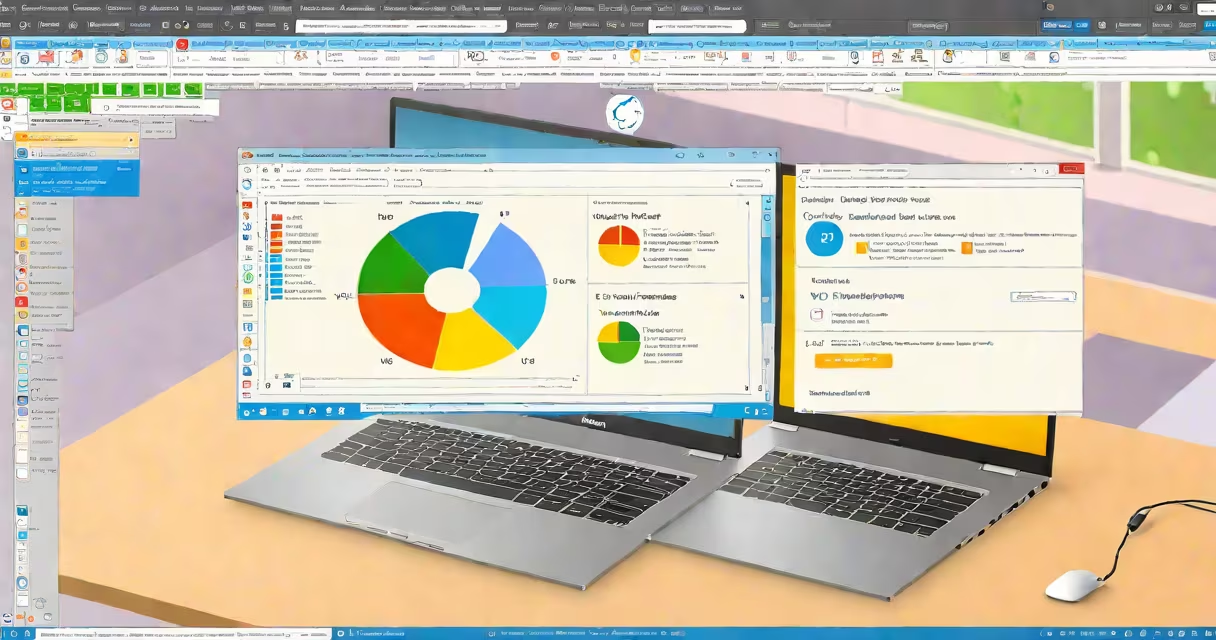
To check the Windows version on a laptop, open the System window via Settings or run the winver command in the Run dialog. This reveals the specific edition (like Windows 10 Home or Windows 11 Pro) and build number.
The Windows version identifies which release of the operating system runs on your device. Knowing it helps verify compatibility with software, drivers, and security updates. For example, Windows 10 version 22H2 includes features like improved touchpad gestures and updated security protocols. The version number is tied to support timelines-Windows 10 reached end-of-life in October 2025, meaning no further security patches will be issued.
Microsoft tracks versions through a numbering system: major release (e.g., 10 or 11), update branch (e.g., 22H2), and build number (e.g., 19045). A laptop running Windows 11 version 23H2 has a build number of 22631. This detail matters when troubleshooting or installing apps that require a minimum OS version.
When you check the Windows version, the system pulls data from the registry and system files. The version appears in multiple formats depending on the tool used. The most common outputs include:
These values are stored in the Windows Registry under HKEY_LOCAL_MACHINE\SOFTWARE\Microsoft\Windows NT\CurrentVersion. Tools like System Information or Command Prompt read this location to display the data. The build number is critical for IT departments managing fleets of laptops, as it determines whether a patch or driver is compatible.
For example, a laptop with build 19045.3577 supports the latest DirectX 12 Ultimate features. A user trying to install a game requiring DirectX 12 Ultimate would fail on a machine with an older build, even if the version number appears correct.
There are four reliable ways to check the Windows version on a laptop. Each offers different levels of detail and access.
| Method | Steps | Output Detail |
|---|---|---|
| Settings App | Go to Settings > System > About. Look under "Windows specifications" for "Edition" and "Version." | Displays edition (Home/Pro), version (e.g., 22H2), and build number. |
| Run Dialog | Press Win+R, type winver, press Enter. A pop-up shows the version and build. |
Quick, minimal interface. Shows only the version and build. |
| Command Prompt | Open CMD, type ver and press Enter. Or use systeminfo | findstr /i "os". |
Shows the OS name and version string. Useful for scripting. |
| System Information | Press Win+R, type msinfo32, press Enter. Find "OS Name" and "OS Version" in the list. |
Complete view. Includes architecture (x64), product ID, and service pack status. |
I used the msinfo32 method during a remote support session. A user reported crashes in Adobe Premiere Pro. Checking System Information revealed their laptop ran Windows 10 version 1809 (build 17763), which was discontinued in 2021. Upgrading to a supported version resolved the instability.
People often mistake the version number for the edition. A laptop may show "Windows 10" as the version but actually run Windows 10 Pro. The edition affects licensing, features, and group policy settings. For example, Windows 10 Pro supports BitLocker encryption, while Home does not.
Another frequent error is assuming the version number reflects the date of installation. Windows 10 version 22H2 was released in October 2022, but many users still see it as "new" even after years of use. The version number does not indicate age-it indicates the feature set.
Some users try to change the version by modifying system files. This is ineffective and risky. The version is locked by Microsoft's activation system. Attempting to alter it can trigger a blue screen or prevent login. Always check the version, never modify it.
Knowing your Windows version prevents software conflicts. A developer testing a Python app with a library requiring Windows 11 SDK will fail on Windows 10. The error message may say "missing DLL," but the root cause is OS version mismatch.
Security is another factor. According to Microsoft's lifecycle policy, Windows 10 version 21H2 ended support in May 2023. Systems running it are vulnerable to exploits like EternalBlue, which affected unpatched machines in the 2017 WannaCry attack. Regular version checks help maintain system integrity.
For businesses, tracking versions across devices ensures compliance. The National Institute of Standards and Technology (NIST) recommends verifying OS versions before deploying software in regulated environments. A healthcare provider using electronic medical records must confirm all laptops run Windows 10 version 22H2 or later to meet HIPAA requirements.