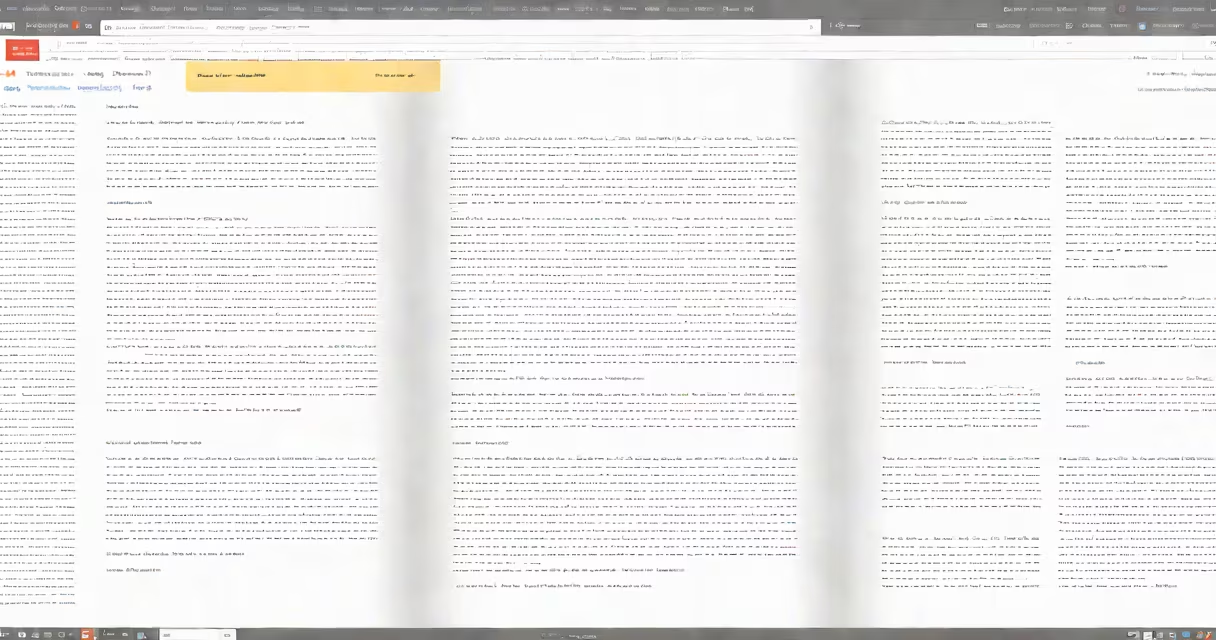
Format a novel in Google Docs by setting 1-inch margins, using 12-point Times New Roman or similar serif font, applying double line spacing, and aligning text left with no extra space between paragraphs. This structure meets standard publishing industry expectations for manuscript submissions.
Use a serif font such as Times New Roman, Garamond, or Georgia. These fonts are easier to read in long blocks of text and are preferred in print-ready manuscripts. Avoid sans-serif fonts like Arial or Calibri unless submitting for a specific genre or publisher that allows it. Set the font size to 12 points. Line spacing must be double-this gives editors room to annotate and ensures readability during review.
| Setting | Recommended Value | Why It Matters |
|---|---|---|
| Page Size | 8.5 x 11 inches | Matches standard printer paper and submission guidelines |
| Margins | 1 inch (all sides) | Required by most literary agencies and publishers |
| Font | Times New Roman, 12 pt | Industry standard for clarity and professionalism |
| Line Spacing | Double | Allows space for editorial notes and improves readability |
Paragraphs should begin with a 0.5-inch indent for each new paragraph. Do not add extra space between paragraphs. This is known as "no paragraph spacing" and is the accepted norm in professional manuscript formatting. To apply this, select all text, go to Format > Paragraph styles > Normal text, then adjust the indent under "Special" to "First line" with 0.5 inches.
Use consistent chapter headings. Center the chapter title on the page, use title case (capitalize first letters of major words), and apply a separate heading style. For example, "Chapter One: The Arrival" should be centered, bold, and set to 14-point font. Avoid underlining or italicizing unless the title itself contains italics (e.g., a book within a book).
A common mistake is using tabs or multiple spaces to create indents. This leads to inconsistent formatting when documents are shared or converted. Always use the paragraph indent function in Google Docs. Another error is adding extra blank lines between paragraphs. This creates visual clutter and deviates from industry standards. A correctly formatted manuscript should have no extra vertical space between paragraphs.
When you're done, save the file as a .docx or PDF. Go to File > Download > Microsoft Word (.docx) or PDF Document (.pdf). This preserves formatting when sent to agents or editors. Some agents request .docx specifically because it's widely supported and editable.
I once formatted a 78,000-word historical fiction manuscript in Google Docs for a client who was preparing to submit to a literary agent. After setting up the correct margins, font, and spacing, I used the "Find and Replace" tool to replace all instances of "<br>" (which had crept in from past copy-paste actions) with actual line breaks. This eliminated invisible formatting errors that could cause line breaks to appear incorrectly in print.
Some writers confuse manuscript formatting with book design. Manuscript formatting is about clarity and consistency for submission. Book design-used when publishing-is about layout, cover art, typography, and page design. You don't need a cover or chapter illustrations when submitting a manuscript. Focus on clean, readable text.
Another misconception is that you must use a specific font like Courier. While Courier was standard in the typewriter era, modern publishers accept Times New Roman or similar serif fonts. The Chicago Manual of Style (17th ed.) states that "manuscripts should be typed in a clear, legible font" and recommends "standard serif typefaces" for submissions.
For longer projects, use the "Document Outline" feature in Google Docs to jump between chapters. Click View > Show document outline to see a collapsible list of headings. This speeds up navigation and editing, especially when revising large sections.
Always proofread in print preview mode. Go to File > Print Preview to see how the document appears on a physical page. Check for widows (single lines at the top of a page), orphans (single lines at the bottom), and awkward page breaks. Adjust paragraph breaks manually if needed.
Finally, don't overwrite your original draft. Make a copy before applying final formatting. Name it "Novel_Title_Final_Submission.docx" to track versions. This prevents accidental changes during revisions.
Properly formatted manuscripts reduce friction in the submission process. Publishers and agents receive documents that look professional and follow established norms. Using Google Docs for this task offers collaboration tools, version history, and cloud access-all essential for writers working remotely or with editors.
Understanding how to format a novel in Google Docs ensures your work presents and professionally. Follow the steps above to meet industry standards and increase your chances of acceptance.