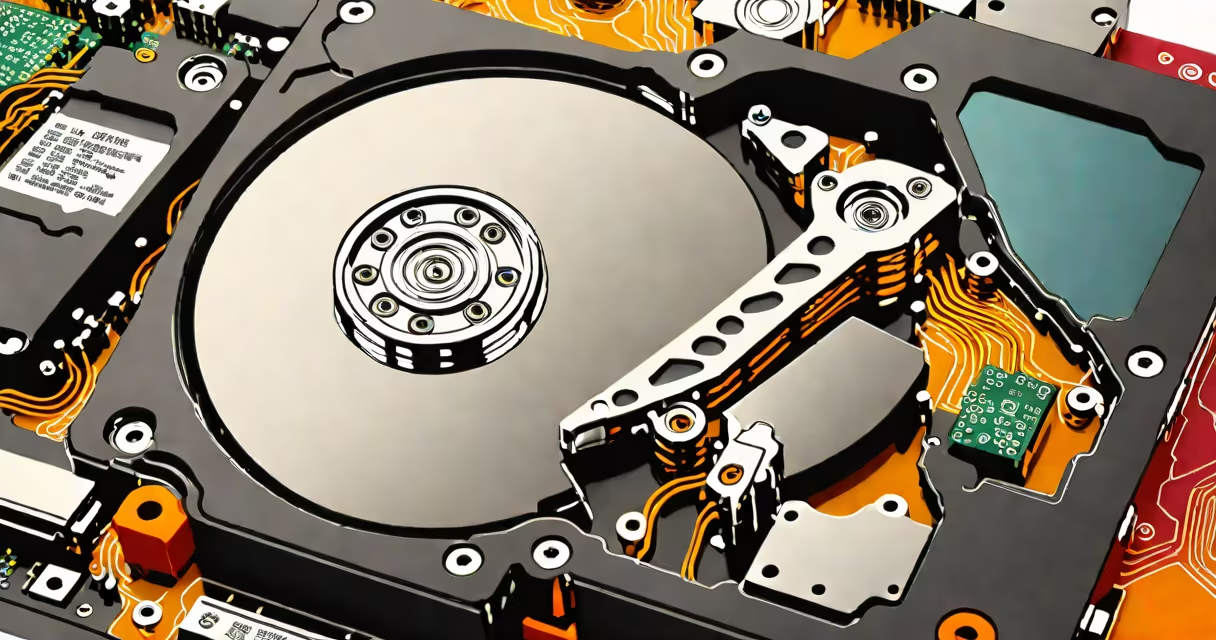
An internal hard drive stores digital data permanently using spinning magnetic disks and moving read/write heads. It retains files, operating systems, applications, and user data even when power is off, serving as the primary long-term memory in computers.
Inside a desktop or laptop, the hard drive connects directly to the motherboard via SATA or NVMe interfaces. When you save a document, install software, or watch a video, the system writes data to specific locations on the drive's platters. Later, when you open the file, the drive retrieves it quickly from those same physical locations.
Unlike RAM, which loses data when powered down, an internal hard drive maintains stored information indefinitely. This makes it essential for keeping your computer's state between sessions. Without it, your device would have no place to store the operating system or personal files.
Internal hard drives rely on electromagnetic principles. Data is written and read by tiny coils in the read/write head, positioned just nanometers above the surface of rotating platters coated with ferromagnetic material. These platters spin at speeds ranging from 5,400 RPM to 15,000 RPM, depending on the model.
For example, a typical 1TB 7,200 RPM drive spins at 120 revolutions per second. As each platter rotates, the head moves radially across its surface to access different tracks. A single track contains thousands of sectors, each storing 512 bytes of data. The drive's controller manages these movements precisely to locate and retrieve data efficiently.
Modern drives use advanced techniques like perpendicular magnetic recording (PMR) and shingled magnetic recording (SMR) to increase storage density. PMR aligns magnetic domains vertically, allowing more data per square inch. SMR overlaps tracks like roof shingles to pack more bits into the same space, though it slows down write performance due to the need to rewrite adjacent tracks.
Every internal hard drive contains several core parts:
There are two main types of internal hard drives: traditional HDDs and solid-state drives (SSDs). While both serve as persistent storage, they differ fundamentally in design and performance.
| Type | Interface | Speed (Sequential Read) | Use Case |
|---|---|---|---|
| HDD (Traditional) | SATA III | ~150 MB/s | Large-capacity storage, budget builds |
| SSD (NVMe) | M.2 NVMe | ~3,500 MB/s | Operating system, gaming, high-performance tasks |
While SSDs offer faster access times and no moving parts, many users still rely on HDDs for bulk storage due to lower cost per gigabyte. For example, a 4TB HDD costs around $80, while a comparable NVMe SSD exceeds $200.
People often confuse internal hard drives with RAM or cloud storage. Unlike RAM, which holds temporary data during active use, the hard drive keeps data after shutdown. Cloud storage is remote and requires internet access; local hard drives store data locally and instantly.
A common mistake is assuming that a slow computer always means a failing hard drive. While degraded performance can signal issues, it may also stem from insufficient RAM, malware, or outdated software. However, symptoms like frequent crashes, strange noises (clicking or grinding), or failure to boot are strong indicators of hardware problems.
I once diagnosed a dead hard drive in a client's laptop after noticing the system wouldn't start past the BIOS screen. The drive emitted a series of rapid clicks-known as the "click of death"-caused by the actuator arm repeatedly seeking the correct position. After removing the drive and connecting it to a USB adapter, I confirmed the platters were spinning but unreadable due to corrupted firmware. The data was unrecoverable without professional tools.
According to Backblaze, a cloud backup provider, the average annual failure rate for consumer-grade HDDs is 1.5%. That means roughly 1 in 67 drives fails within a year. For enterprise models, the rate drops to 0.5%, reflecting better build quality and environmental controls.
Hard drive failure typically begins with bad sectors-areas on the platter that can no longer reliably store data. The drive's controller marks these areas as unusable and reallocates data to spare sectors. Over time, this process depletes available spares, leading to complete failure.
If you suspect a failing drive, run diagnostic tools like CrystalDiskInfo or the manufacturer's utility (e.g., Seagate SeaTools). These tools monitor SMART (Self-Monitoring, Analysis, and Reporting Technology) attributes such as reallocated sector count and pending sectors. A rising count signals imminent failure.
Once a drive fails, recovery depends on the cause. Mechanical damage-such as head crashes or motor failure-requires specialized cleanroom labs. Electronic failures may be repaired by replacing the controller board, but this risks data corruption if the board isn't matched exactly.
For critical data, professional recovery services charge $500-$2,000, depending on complexity. In contrast, software-based recovery tools like Recuva or TestDisk can restore deleted files from healthy drives-but only if the data hasn't been overwritten.
Prevention matters. Always back up important files regularly. Use RAID configurations in servers, and enable automatic backups through Windows Backup or macOS Time Machine. Even a small external drive can prevent data loss.
Understanding what an internal hard drive does helps you make informed choices about storage, maintenance, and recovery. troubleshooting a slowdown, knowing how it functions-and how it fails-is essential.